Blog
ModuleNotFoundError: No Module Named 'selenium' Fix

Rishabh Kumar
Published on

Table of contents
Lorem ipsum
Lorem ipsum
Lorem ipsum
Lorem ipsum
Lorem ipsum
The 60-Second Fix
If a script is failing right now, start here. Most cases of this error resolve in two commands.
The first command installs Selenium into the exact Python interpreter that is currently active. The second confirms the import works from that same interpreter. If a version number prints, the fix is done.
If the first command succeeds but the second still fails, the cause is an interpreter mismatch. Pip installed Selenium into one Python and the script is running in a different one. Use the same command form for both:
If python and python3 resolve to different interpreters on the system, pick one and use it consistently:
If the error still persists after both commands, the cause is one of the seven structural patterns covered below.
What ModuleNotFoundError: No module named 'selenium' Error Actually Means
ModuleNotFoundError: No module named 'selenium' is raised when Python searches the locations on sys.path and finds no installed package named selenium. It is part of Python's standard exception hierarchy, introduced in Python 3.6, replacing the older ImportError for missing modules specifically.
The error does not mean Selenium is broken. It means Selenium cannot be found in any of the directories the current interpreter looks in. Two Python interpreters on the same machine can have completely different views of what is installed. The error is almost always about which Python is being asked to import, not about Selenium itself.
This distinction matters because the most common fix, running pip install selenium, targets one interpreter while the failing script runs in another. The same machine, the same project, and the same terminal session can have Selenium installed in three places and missing from a fourth.
Three Diagnostic Questions
Before applying any fix, answer these three questions. The combination tells you which of the seven causes is in play and which fix to apply. This takes thirty seconds and saves an hour of trial and error.
Question 1: Is Selenium installed anywhere pip can see?
What to do:
What the output tells you:
If the command prints a version number and a Location: field, Selenium is installed somewhere. Note the location. If nothing prints, Selenium is not installed anywhere pip can currently see.
Why it matters:
The location field tells you which Python installation received the package. If that location does not match the interpreter running your script, the installation is in the wrong place.
Question 2: Which Python interpreter is running the script?
What to do:
What the output tells you:
The absolute path to the Python binary currently running. Compare the directory of this path against the Location: field from Question 1. If they point to different Python installations, the mismatch is the cause.
Why it matters:
This single check identifies interpreter mismatch, which is the cause of the majority of reports of this error on machines where Selenium has been installed at least once.
Question 3: Which environments are currently active?
What to do:
What the output tells you:
If $VIRTUAL_ENV is empty, no virtual environment is active and Python is falling back to the system interpreter. If the conda environment name shown is not the one Selenium was installed into, the wrong environment is active.
Why it matters:
A virtual environment that exists but is not activated is one of the most common causes of this error appearing immediately after a successful installation.

The Seven Root Causes
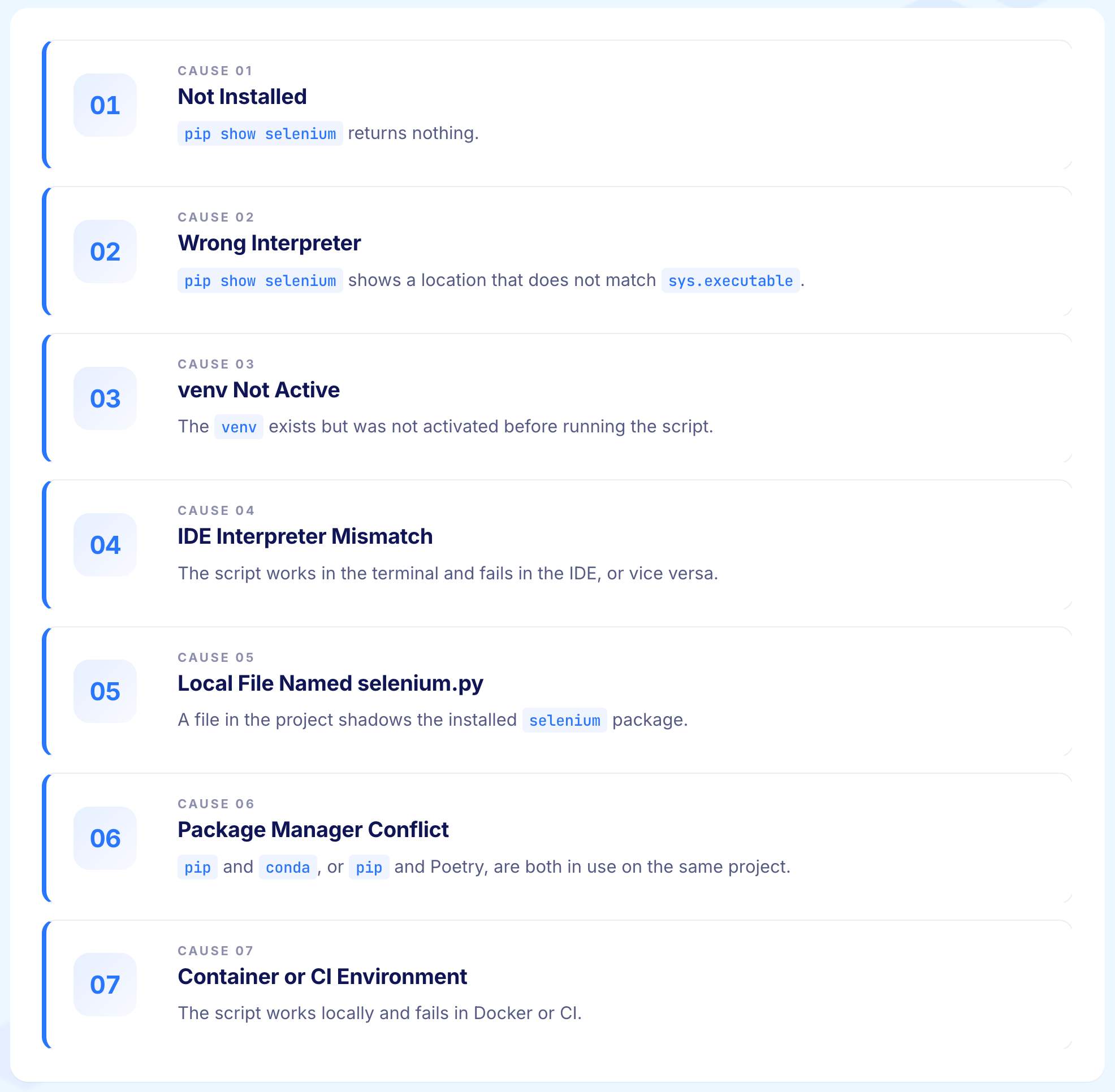
Most reports of this error fall into one of these seven patterns. Use the diagnostic questions above to identify which one applies before attempting a fix.
Cause 1: Selenium Is Not Installed
The simplest case. pip show selenium returns nothing. Selenium has never been installed into any Python the current user can see.
The fix:
Use the python -m pip form rather than plain pip. Plain pip may resolve to a different Python installation if the system has multiple Python versions on PATH. The python -m pip form guarantees the install targets the exact interpreter python resolves to.
Cause 2: Selenium is Installed Under a Different Python
The most frequent cause on modern machines. pip show selenium shows a location like /usr/local/lib/python3.9/site-packages, but the script runs under Python 3.11 because that is what python resolves to on PATH. Selenium is installed. It is just installed somewhere the running interpreter cannot see.
The fix:
Identify the interpreter running the script, then install against it specifically:
Or normalise the system. Pick one Python version, confirm that python resolves to it, and install all packages against it consistently.
If the project uses uv:
The uv run form ensures the script runs in the same environment the package was installed into, avoiding the mismatch entirely.
Cause 3: A Virtual Environment Is Not Active
Selenium was installed into a venv at ./venv/, but the developer ran the script without activating the venv first. Python fell back to the system interpreter, which does not have Selenium. The installation worked. The activation step was skipped.
The fix:
Activate the venv before running the script:
After activation, the shell prompt usually shows the environment name in parentheses. From inside the activated venv, both pip and python point at the venv's binaries, and the import resolves.
Cause 4: The IDE Uses a Different Interpreter From the Terminal
The script works in the terminal and fails in the IDE, or the script works in the IDE and fails in the terminal. The IDE has its own interpreter selector that operates independently of whatever is on PATH in the terminal session.
The fix by IDE:
VSCode: The active interpreter shows in the bottom status bar. Open the command palette (Ctrl+Shift+P on Windows, Cmd+Shift+P on macOS), type Python: Select Interpreter, and choose the interpreter that has Selenium installed. If the project uses a venv at ./venv/, VSCode usually offers it automatically.
If not, browse to the binary: ./venv/bin/python on macOS or Linux, ./venv/Scripts/python.exe on Windows. If Pylance still flags the import after changing the interpreter, open the command palette and run Developer: Reload Window to clear stale state.
PyCharm: Open Settings → Project: <name> → Python Interpreter. The dropdown shows the active interpreter. Use Add Interpreter to point at the venv, conda environment, or system Python that has Selenium installed.
After changing the interpreter, go to File → Invalidate Caches → Invalidate and Restart if the import still shows as unresolved.
Jupyter: The error in Jupyter means the active kernel does not match the environment Selenium was installed into. List available kernels with jupyter kernelspec list.
Install Selenium into the kernel's environment, or register a new kernel for an environment that has Selenium:
Then select selenium-env from the Kernel menu inside the notebook.
Cause 5: A File Named selenium.py Shadows the Real Module
The project contains a file named selenium.py, perhaps the script being developed, perhaps a sibling file. Python's import system searches the current working directory before it searches the site-packages directory. It finds the local selenium.py first and tries to import from it. The installed Selenium package is never reached.
The error appears even when Selenium is installed correctly. The same problem occurs when a directory in the project is named selenium without an __init__.py that re-exports the real module.
The fix:
Rename the offending file or directory. A safe convention is to prefix project files with the project name. For example: my_selenium_tests.py instead of selenium.py.
Cause 6: Multiple Package Managers Are Conflicting
The project uses both pip and conda, or both Poetry and pip directly. Selenium was installed by one tool and the script runs in an environment managed by the other. From the running interpreter's perspective, Selenium does not exist even though another tool claims it was installed.
The fix:
Commit to one package manager per project.
For conda-managed projects: conda install -c conda-forge selenium
For Poetry projects: poetry add selenium
For pipenv projects: pipenv install selenium
If the project must mix conda and pip, activate the conda environment first and then run pip install selenium so pip targets that environment's site-packages rather than the system default.
Cause 7: The Container or CI Environment Lacks Selenium
The script works on the developer's machine and fails in Docker, GitHub Actions, GitLab CI, or a similar environment. The build image does not include Selenium, and the install step was either missed from the workflow or failed silently before the test step ran.
The fix for Docker:
Install Selenium as part of the image build:
For Selenium with a browser, the official Selenium standalone images include both Selenium and a browser driver. Use them as the base image when the workload involves browser automation in CI to avoid managing the driver installation separately.
The fix for GitHub Actions:
Add an explicit install step before the test step:
Pin the version. Without pinning, the build breaks the next time Selenium ships a major release.
Common Mistakes Teams Make
1. Installing with Plain pip Instead of python -m pip
Plain pip may resolve to a different interpreter than the one running the script, particularly on machines with multiple Python versions installed. The python -m pip form guarantees the install targets the active interpreter. Using it consistently eliminates an entire category of mismatch errors.
2. Forgetting to Activate the Virtual Environment
The venv exists at ./venv/ with Selenium installed inside it. The developer runs the script without activating the venv and Python falls back to the system interpreter, which does not have Selenium.
The fix is activation, not reinstallation. Documenting the activation command in the project README reduces how often this happens.
3. Naming a Project File selenium.py
Python finds the local file before it reaches the installed package, and every other fix in the world will not help until the file is renamed. Prefixing project files with the project name prevents this entirely.
4. Mixing Package Managers in the Same Project
Conda installs that pip cannot see, pip installs that Poetry overwrites, Poetry environments that pipenv ignores. Each tool manages its own view of the environment. Picking one tool per project and documenting it in the README is the only reliable solution.
5. Trusting the IDE to Match the Terminal's Environment
The IDE has its own interpreter selector that operates independently of the terminal's PATH. The fix involves pointing the IDE at the correct interpreter rather than reinstalling anything. The terminal and the IDE must agree on which Python they are using.
6. Skipping Version Pinning in CI
A build that worked yesterday breaks today because Selenium shipped a major release overnight. Pinning the version in requirements.txt or the equivalent dependency manifest prevents the build from breaking on someone else's release schedule.
Why Test Automation Has So Much Environment Friction
A team that fixes this error five times in a sprint is not unlucky. The friction is structural and worth understanding directly.
Selenium is a Python package, but it depends on a browser driver (chromedriver, geckodriver) that lives entirely outside Python. The driver depends on a browser. The browser depends on the operating system. The Python interpreter depends on the system installation. The script depends on the interpreter. Each layer has its own version, its own update cadence, and its own ways of breaking independently of the layers around it.
On top of that, the developer's local environment, the CI environment, the staging environment, and any production environment each replicate this full stack. A version drift in any layer of any environment produces a failure that looks different from the last one and requires a new diagnosis.
The teams that stop accumulating this debt either invest heavily in environment management through Docker, infrastructure as code, and strict dependency pinning, or move to platforms where the execution surface is managed for them.
The first option reduces the frequency of failures. The second option removes the category of failure entirely.
How Virtuoso QA Avoids This Problem
Virtuoso QA runs as a managed cloud platform. The Python interpreter, browser drivers, browsers, the Selenium-equivalent runtime, and the operating system underneath are all maintained as part of the platform rather than as the team's responsibility.
A test runs on a cross-browser grid spanning over two thousand configurations without the team installing Python on a CI runner, downloading a browser driver, matching browser and driver versions, or pinning a package version against a future Selenium release. The execution layer is managed upstream. The test itself is authored in natural language.
The benefit shows up most clearly during onboarding. An engineer who would have spent half a day installing Python, configuring a venv, downloading drivers, and resolving version conflicts is instead authoring and running tests on day one. The environment is solved once, at the platform level, rather than repeatedly at the project level.
The reader who has spent the morning on this error is exactly the person this approach was built for.
Related Reads
ElementNotInteractableException in Selenium: Complete Fix Guide
From Selenium Scripts to Self-Healing Tests: The Complete Journey of Test Automation
Selenium Timeouts Explained: Implicit, Explicit, Fluent Waits
Dynamic XPath in Selenium Explained With Practical Examples
Selenium ChromeDriver Setup Guide: Install, Configure & Run Chrome Tests
Frequently Asked Questions
What does ModuleNotFoundError: No module named 'selenium' mean?
Why is the error appearing even though Selenium is installed?
How does an AI-native test platform avoid this class of problem?