Blog
How to Handle Dropdown in Selenium WebDriver

Adwitiya Pandey
Published on

Table of contents
Lorem ipsum
Lorem ipsum
Lorem ipsum
Lorem ipsum
Lorem ipsum
Dropdowns are one of the most common UI elements in enterprise web applications and one of the most common reasons Selenium tests break. The problem is not that Selenium cannot handle dropdowns. The problem is that there is no such thing as a single dropdown type. A user sees a list of options. The DOM underneath might be implementing that list in four or five completely different ways, and only one of those ways works cleanly with Selenium's built-in Select class.
Teams that do not recognise this distinction early end up writing the same brittle click sequences dozens of times, debugging the same timing failures across every release, and spending more time maintaining dropdown interactions than writing meaningful test coverage.
This guide covers every dropdown pattern that appears in real enterprise applications, the code that handles each one reliably, the errors that come up most often, and an honest assessment of where Selenium's dropdown handling breaks down at scale.
Why Dropdown Handling Breaks So Often in Selenium
The core issue is that a dropdown is a visual concept, not a technical specification. When a browser displays a list of selectable options, the HTML structure producing that list can vary enormously depending on which framework built it.
Standard HTML provides a native <select> element for dropdowns, and Selenium's Select class handles it well. Modern web frameworks, however, rarely use the native element.
Bootstrap, Material UI, React Select, and Salesforce Lightning all build dropdowns from combinations of divs, buttons, lists, and JavaScript event handlers. None of these expose a <select> tag, which means the Select class throws an error the moment it encounters them.
Most enterprise applications contain a mix of both styles. A single application might use native selects on older pages, a React-based component library on newer ones, and a Salesforce Lightning combobox on its CRM integration layer. Each of these requires a different interaction pattern, and teams that do not inspect the DOM before writing test code end up discovering this the hard way after their tests fail in CI.
Check the DOM Before Writing Any Code
The single most effective habit for dropdown handling in Selenium is inspecting the element in browser DevTools before deciding which approach to use. Opening DevTools, finding the dropdown in the DOM inspector, and checking its HTML tag takes thirty seconds and prevents hours of debugging.
If the element tag is <select>, the Select class will work and the interaction is straightforward. If the element tag is anything else, such as <div>, <button>, <input>, or <ul>, the Select class will not operate on it and the test needs to use direct click and wait logic instead.
Skipping this step is how teams write a hundred lines of failed test code before realising the platform never supported the Select class for that particular widget.
Handling Standard Select Dropdowns with the Select Class
When the dropdown is a genuine <select> element, the Select class is the cleanest and most readable approach available. It handles the underlying interaction details and exposes three selection methods and several inspection methods that make assertions straightforward.
Setting Up the Select Object
The first step is locating the <select> element using any standard locator strategy, then passing it into a new Select object.
Three Ways to Select an Option
The Select class exposes three selection methods, each suited to a different situation.
selectByVisibleText is the most readable and stays stable when option labels are localised consistently across environments. selectByValue is more resilient to label changes when developers maintain stable internal codes alongside the displayed text. selectByIndex is the quickest to write but the most fragile because the order of options in a list changes more often than developers expect.
Reading the Current Selection
Inspecting the current state of a dropdown is as common as setting it, particularly when writing assertions about default values or verifying that a previous interaction persisted correctly.
The Select class exposes enough state information to build meaningful assertions about dropdown content, default selections, and option ordering without falling back to raw locator queries.
Handling Multi-Select Dropdowns
A dropdown that allows multiple simultaneous selections uses <select multiple> in the HTML rather than a standard single-select. The Select class detects this automatically through the isMultiple() method.
The deselectAll() method only works when isMultiple() returns true. Calling it on a single-select dropdown throws a NotImplementedError, so the defensive pattern is always to check first before attempting bulk deselection.
Handling Custom Dropdowns Without the Select Class
Most modern dropdowns do not use the native <select> element. A typical custom dropdown in the DOM looks something like this:
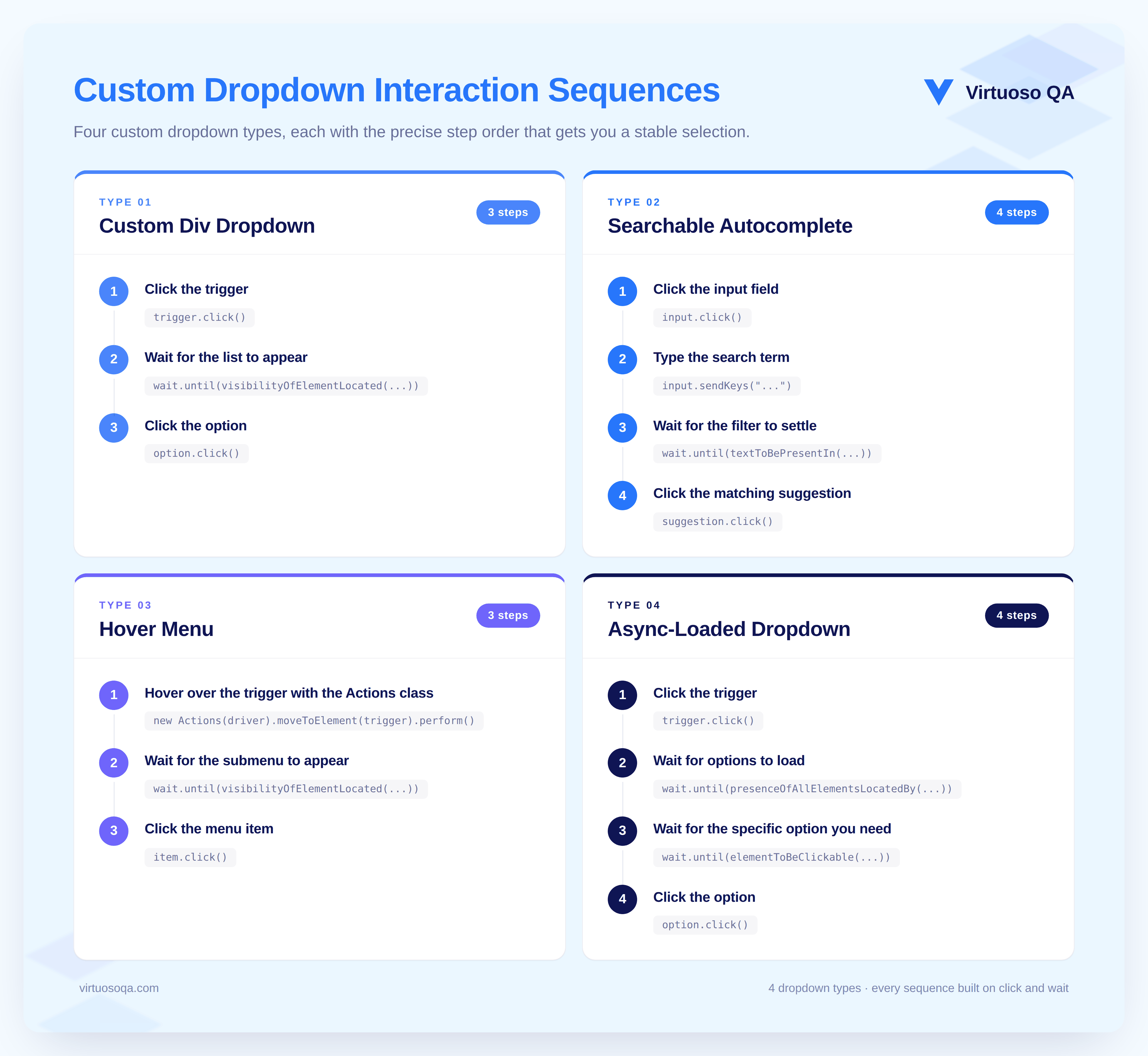
The Select class cannot operate on this structure. The test needs to open the dropdown by clicking the trigger, wait for the option list to become visible, locate the desired option, and click it directly.
Two patterns prevent the most common failures here. Always wait for the option list to render after the trigger click rather than immediately trying to locate an option that may not yet be in the DOM.
Build the option locator on stable text content or data attributes rather than positional indices, since custom dropdown libraries frequently re-order options during rendering.
Handling Searchable and Autocomplete Dropdowns
Searchable dropdowns combine an input field with a filtered option list that updates as the user types. The interaction sequence is more involved than a standard dropdown because it requires a typing step, a wait for filtering to complete, and a click on the filtered result.
Autocomplete components vary considerably in their implementation details. Some clear the typed text immediately on selection, some retain it, and some require pressing Enter or Tab to confirm rather than clicking. Testing the actual behaviour in the browser before writing the automation sequence avoids encoding the wrong interaction pattern.
Handling Hover-Based Dropdowns with the Actions Class
Some navigation menus and dropdowns open when the user moves their cursor over a trigger element rather than clicking it. Selenium's standard click methods cannot replicate this behaviour, so the Actions class is required to simulate the hover interaction.
Hover-based dropdowns are inherently more fragile than click-based ones because animation delays, DOM reflows, or slight cursor position variations can cause the menu to close before the click on the submenu item registers. Where possible, raising this with the application team and asking them to support a click-based trigger alongside the hover behaviour is worthwhile, particularly because hover-only menus are inaccessible to keyboard users.
Handling Dynamic and Async-Loaded Dropdowns
Some dropdowns do not load their options until after the user opens them. The options are fetched from an API on demand, which means the option list may be empty for a moment after the trigger is clicked. Attempting to locate an option immediately after opening will produce a NoSuchElementException because the options have not arrived yet.
Thread.sleep should not be used for these scenarios. A hard-coded sleep either runs longer than necessary, slowing every test that uses it, or too short for slower network conditions, producing intermittent failures that are difficult to reproduce and diagnose. Explicit waits with appropriate ExpectedConditions adapt to actual load times and fail clearly with a timeout message when something genuinely goes wrong.
Common Dropdown Errors and How to Fix Them
1. UnexpectedTagNameException
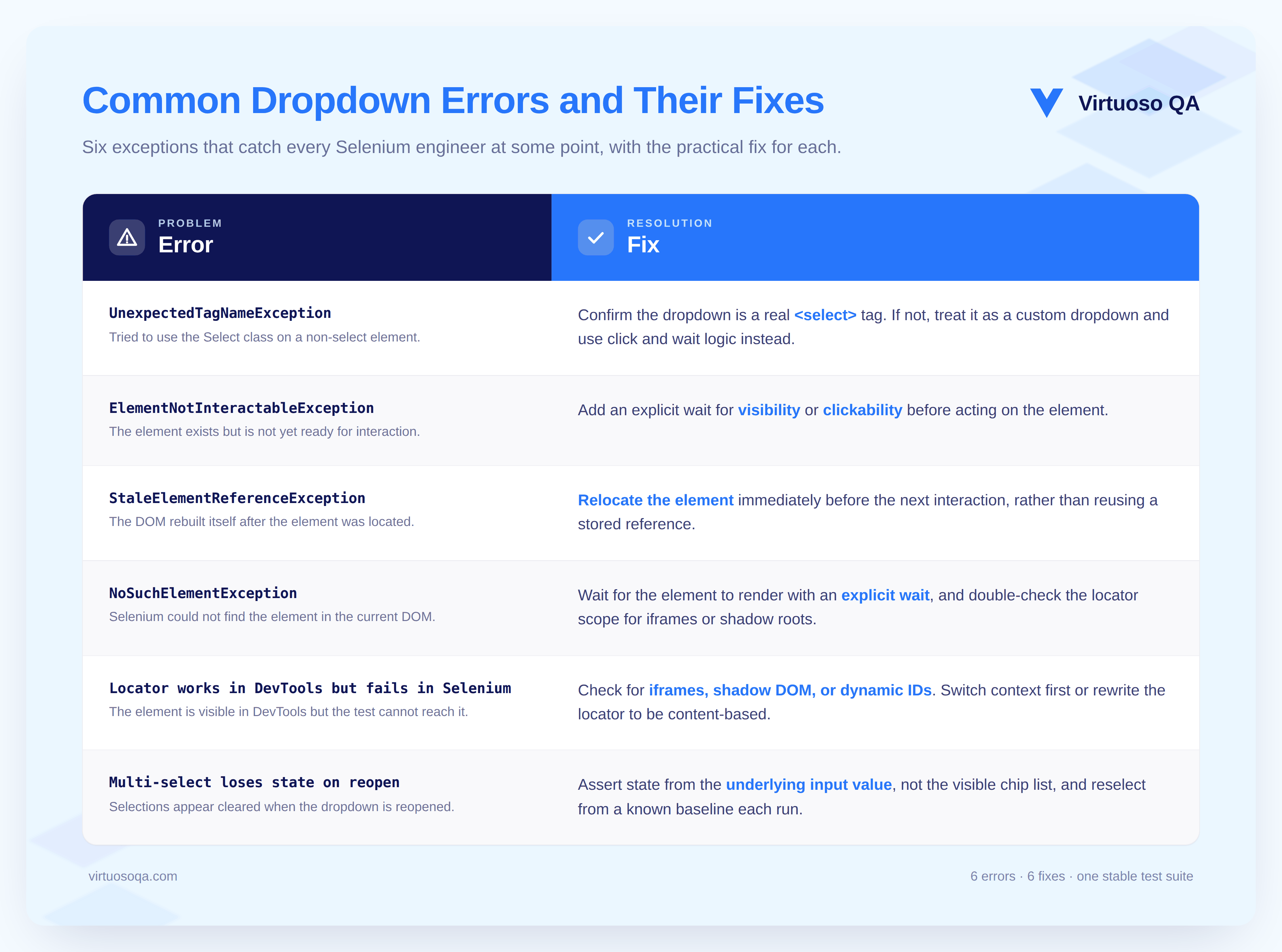
The Select class was applied to an element that is not a <select> tag. The fix is to open DevTools, confirm the element type, and replace the Select class with direct click logic for custom dropdown widgets.
2. ElementNotInteractableException
The dropdown element is present in the DOM but is not yet visible or clickable. Common causes include a modal dialog that has not finished animating open, a dropdown element covered by another element in the z-order, or a CSS transition still in progress. The fix is an explicit wait using ExpectedConditions.elementToBeClickable rather than locating the element and clicking immediately.
Suggested Read: How to Fix ElementNotInteractableException in Selenium
3. StaleElementReferenceException on Options
A reference to a dropdown option becomes stale after the dropdown re-renders, which happens frequently in React and Angular applications where the component re-renders on every state change. The fix is to locate the option fresh each time it is needed rather than storing it in a variable across multiple interaction steps.
Suggested Read: How to Fix Stale Element Reference Exception in Selenium
4. NoSuchElementException for an Option That Has Not Loaded Yet
The dropdown has been opened, but the options are fetched asynchronously and have not appeared in the DOM yet when the script tries to click. The fix is an explicit wait for the option to be present before attempting the interaction, as shown in the async dropdown section above.
Related Read: Cause + Fix for NoSuchElementException in Selenium
5. Locator Works in DevTools but Fails in Selenium
A common cause of this is that the dropdown option is rendered inside a portal element appended to the document body rather than nested inside the visible dropdown container. The CSS or XPath built from DevTools assumes positional nesting that does not exist in the actual DOM at runtime. Inspecting the full document DOM after the dropdown opens, not just the area around the trigger, reveals where the options are actually placed.
6. Multi-Select Dropdown Loses Selections When Reopened
Some custom multi-select widgets reset their selected state when the dropdown closes and the user reopens it. Before writing test logic that assumes persistence across open and close cycles, verify how the specific widget handles state. Custom widgets copy the behaviour of the native <select multiple> element only when the developer has explicitly implemented that behaviour.
Best Practices for Dropdown Handling in Selenium
Inspect before coding. Confirming whether the dropdown is a native <select> element or a custom widget before choosing an approach prevents the most common category of dropdown failures and avoids time spent debugging the wrong interaction pattern.
Centralise dropdown interactions in helper methods. Rather than repeating the open, wait, and click sequence at every point in the test suite where a dropdown appears, extracting it into a named helper method keeps the code readable and ensures that changes to a dropdown's behaviour only need to be made in one place.
Choose locators based on stable attributes rather than position. Option order within dropdowns is not guaranteed and changes when developers add, remove, or reorder entries. Tests built on index-based locators break silently when the order changes, while tests built on visible text or data attributes are at least transparent about what they are looking for.
Use explicit waits rather than sleep. Dynamic dropdowns, async-loaded options, and animated menus all require waiting, but the right wait is one that completes as soon as the condition is met rather than one that pauses for a fixed duration regardless of what the application is doing.
Verify the selection after setting it. A click completing without an exception does not guarantee the dropdown changed state, particularly for custom widgets that use JavaScript to manage their internal state. Reading the current selection after setting it and asserting on the result catches cases where the interaction appeared to succeed but produced no change.
How AI-Native Testing Handles Dropdowns Differently
The fundamental problem with Selenium dropdown handling is that tests are written against the mechanism rather than the intent. A test step that says "click element with XPath //ul[@class='dropdown-menu']//li[text()='United Kingdom']" is describing how to interact with the dropdown, not what the test is trying to achieve.
When the dropdown library changes, the mechanism changes with it, and the test breaks even though the intended behaviour has not changed at all.
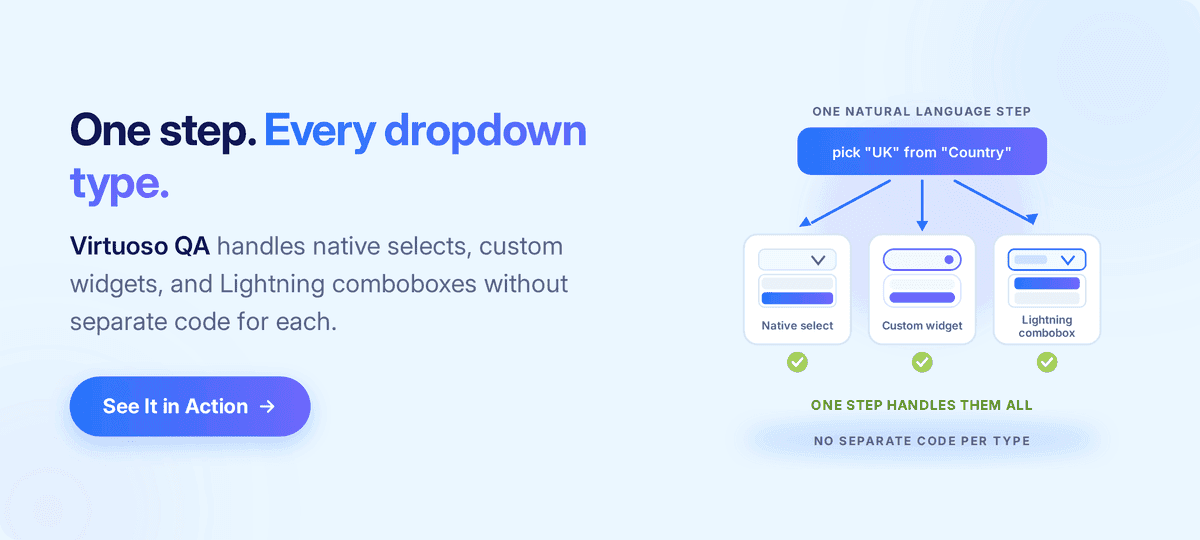
AI-native testing inverts this relationship. The test step describes what the user is doing, for example "select United Kingdom from the country dropdown," and the platform resolves the mechanism at runtime based on its understanding of the application. Whether the dropdown is a native select, a custom div-based widget, a hover menu, or a Salesforce Lightning combobox, the same intent-based step works without modification.
When the application team upgrades their component library and the dropdown's internal DOM structure changes completely, the platform's multi-layer object identification, combining visual analysis, DOM structure, and contextual data, finds the element by what it looks like and what it does rather than by where it sits in the markup. The test continues to run without any human intervention.
How Virtuoso QA Handles Dropdown-Heavy Applications
Virtuoso QA is designed for the reality that enterprise web applications contain dozens of different dropdown patterns and that maintaining separate locator strategies for each pattern has become uneconomical at scale.
Natural Language test authoring means that writing a step to select from a dropdown looks the same regardless of whether the underlying widget is a native select element, a custom div-based component, or a Salesforce Lightning combobox. The test author describes the intent and the platform handles the resolution.
AI-augmented object identification combines visual analysis, DOM structure, and contextual data to locate dropdown triggers and option lists regardless of their underlying markup, which means dropdown tests do not depend on stable IDs, specific class names, or any particular HTML structure to remain functional.
Self-healing at approximately 95 percent accuracy keeps dropdown tests stable through component library upgrades, framework migrations, and Salesforce platform releases without requiring the team to update locators after each change.
GENerator converts existing Selenium test suites, including their dropdown handling logic, into Virtuoso journeys, which gives teams migrating from Selenium a path that preserves existing coverage without requiring every dropdown interaction to be rewritten from scratch.
AI Root Cause Analysis turns dropdown-related failures into actionable diagnostic signals with logs, screenshots, and network evidence, rather than leaving the team to reconstruct what happened from a generic error message.
Cross-browser execution across more than 2,000 OS, browser, and device configurations ensures that dropdown behaviour holds consistently across the environments where real users encounter the application.
Related Reads
Frequently Asked Questions
How do you handle a dropdown in Selenium WebDriver?
What is the Select class in Selenium and when should you use it?
Why does my dropdown locator work in DevTools but fail in Selenium?
How does Virtuoso QA handle dropdowns differently from Selenium?